
Create from a description
Describe the subject, motion, colors and duration to generate new vector artwork. Review the credit cost before generating and inspect the preview before using it.


Create, refine and export your animation.
SVG up to 256 KB · Sign in to upload. Embedded images and existing animations are not supported.
Your animation will appear here.
Describe the subject, motion, colors and duration to generate new vector artwork. Review the credit cost before generating and inspect the preview before using it.
Open the editor to import your SVG and adjust movement, timing and colors. Complex artwork may need simplifying; keep a copy of your source file.
Use the separate video workflow for scenes and narration. A rendered video is different from an editable SVG animation; review the available exports for your project.
Generated artwork uses credits. Editable examples let you inspect a workflow before generating. Saving projects and private downloads require sign-in. Review pricing and privacy details before submitting descriptions, reference images or artwork.
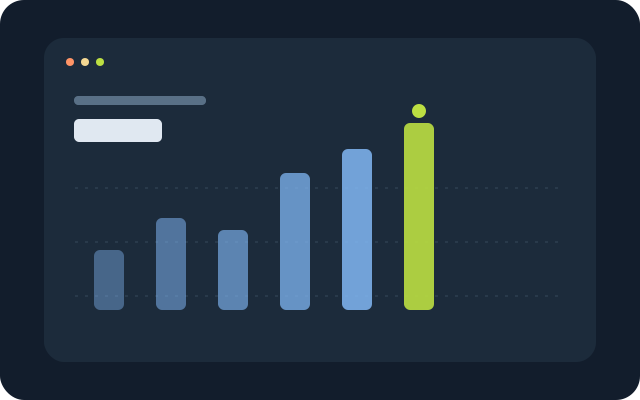
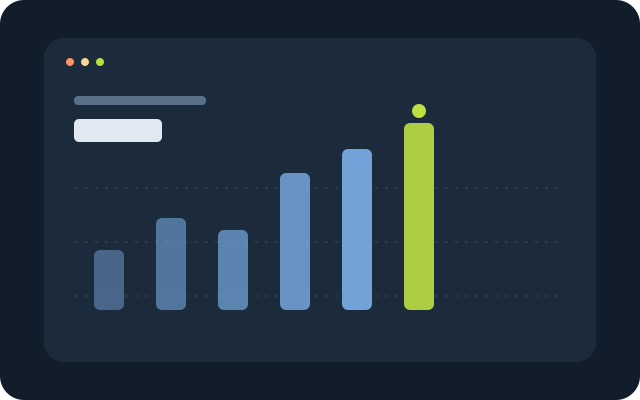
Play, download, or open a complete example in the editor. Sample charts use fictional data.
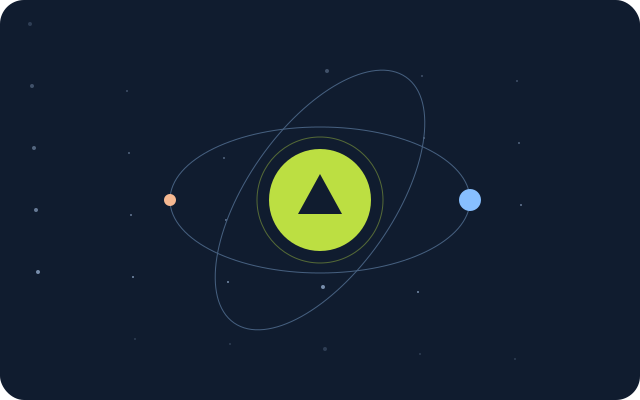
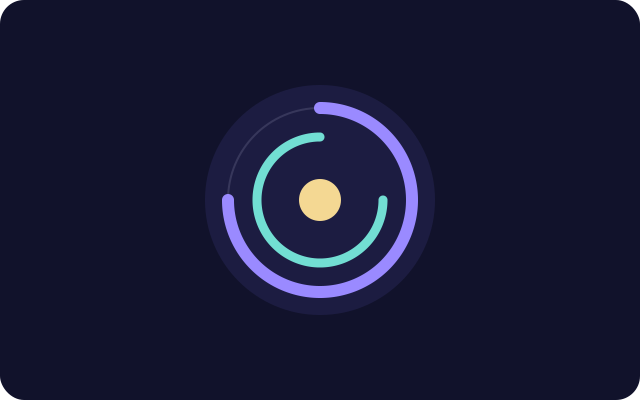


Use a short description to create original vector artwork and motion together. Describe one clear subject, its action and the intended use: a welcoming mascot, a logo reveal or a compact loading indicator. Choose the canvas before generating so the composition matches its destination. SVG stays sharp at different display sizes; the exported file retains the dimensions you set in the editor.
Describe an animation when you need new artwork. Import SVG when you already have a logo, icon or illustration and want to add an effect to that existing design. Importing does not redraw the subject. A pulse, rotation, floating motion or line reveal changes how the graphic moves; it does not teach a static character a new pose or generate articulated running legs.
Visual style guides the drawing: line work, palette, shading and composition. Motion describes what happens over time. “A minimal outline cloud, with raindrops moving down in a two-second loop” is more useful than “make it modern.” Look at the moving style previews, select one direction and describe the action. Changing a style selector applies to your next generation; it does not automatically repaint an existing result.
Start with a square for an icon, landscape for a page illustration or portrait for a vertical composition. Common sizes are shortcuts for the width and height fields. Editing either field switches to a custom size; the aspect lock links the other dimension. The SVG canvas is the artwork boundary. A file viewer may surround it with a large white window, which is separate from the dimensions recorded in the file.
Watch a complete loop before exporting. Adjust duration and colors, and compare a subtle effect with a stronger one at the actual size where people will see it. The original examples below can be opened directly without running an AI task. Saving, manual edits and SVG export do not consume generation credits. New AI generation shows its credit cost before you submit; an insufficient balance opens the available plans.
Download SVG for an image or vector asset. Use the centered player page for a standalone browser preview, or JSON to retain editable project settings. Test the SVG in the browser and context where it will be embedded: some image viewers display only the first frame, and email clients may not play animation. Keep essential meaning visible without motion, and provide an accessible name when you add the asset to a website.
Compare the result with the requested action, not only its appearance. A running character needs the relevant body movement; moving an entire static drawing across the canvas is a different effect. If identity must remain exact, import the original vector and choose an effect that suits its existing shapes. For an interface icon, test at 24 or 32 pixels. For a website illustration, test beside real headings and buttons. Look for cropped movement, unreadable details and excessive repetition. Keep the meaning clear in a still frame, and save a version before trying a new generation.