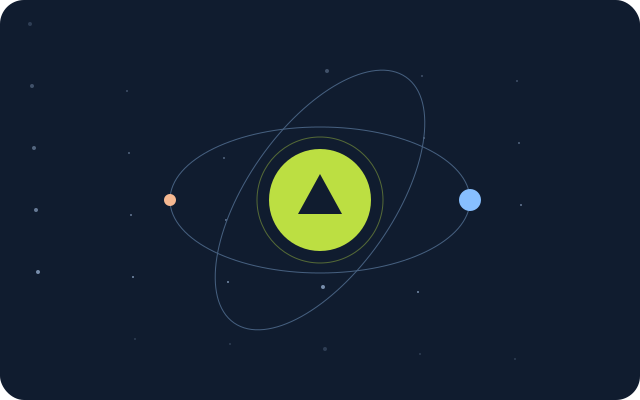


Create a compact animated icon for navigation, feedback or a loading state. Generate new vector artwork or import an existing SVG, then choose motion, duration and the exact canvas size.
Play, download, or open a complete example in the editor. Sample charts use fictional data.
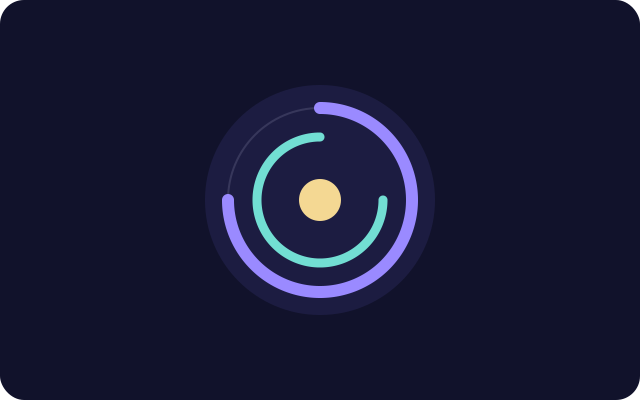


A rotating loader suggests that an operation is still running. A brief pulse can draw attention to a changed item. A line reveal can introduce a simple symbol. Choose one main movement and keep nearby controls stable so people can still read and click them. Animation should reinforce a state that is also expressed through a label, shape or other clear cue.
Import the exact icon when its proportions matter. A newly generated icon may interpret the description differently, while an imported SVG keeps the existing artwork. Check simple shapes at the intended size before adding elaborate effects. Avoid tiny decoration that disappears when displayed in a navigation bar.
Open the aurora loader example, choose a square canvas and watch one complete cycle. Compare a slow and a fast duration while keeping the size unchanged. Then place the result against the intended interface background. Confirm that the outline remains visible and the loop does not appear to stop unexpectedly.
Download the SVG for the final asset and keep an editable project copy. Test the file inside the actual button or panel, because the editor preview is larger than most interface placements. If movement is reduced or unavailable, show a clear waiting message so the user still understands the status.
At 24 or 32 pixels, a recognizable silhouette matters more than detail. Use one principal action and check the icon at its actual display size. A short pulse can confirm an action; a continuous rotation can indicate ongoing work. Do not rely on motion alone to communicate an error or a completed task.
Import the original vector when the shape must stay recognizable. Global effects move or reveal that artwork; they do not redraw it. Choose a clear foreground color, keep sufficient contrast and use a restrained loop next to readable text.
SVG animation playback depends on where the file is used. Browser pages can differ from file viewers and email clients. Provide a meaningful accessible name, a static alternative for reduced motion and enough space that the animation does not move surrounding controls.
Describe an animation when you need new artwork. Import SVG when you already have a logo, icon or illustration and want to add an effect to that existing design. Importing does not redraw the subject. A pulse, rotation, floating motion or line reveal changes how the graphic moves; it does not teach a static character a new pose or generate articulated running legs.
Visual style guides the drawing: line work, palette, shading and composition. Motion describes what happens over time. “A minimal outline cloud, with raindrops moving down in a two-second loop” is more useful than “make it modern.” Look at the moving style previews, select one direction and describe the action. Changing a style selector applies to your next generation; it does not automatically repaint an existing result.
Start with a square for an icon, landscape for a page illustration or portrait for a vertical composition. Common sizes are shortcuts for the width and height fields. Editing either field switches to a custom size; the aspect lock links the other dimension. The SVG canvas is the artwork boundary. A file viewer may surround it with a large white window, which is separate from the dimensions recorded in the file.